


Password Booster Screen Lock i for Windows 7 - Secure your screen with Password Booster. - Windows 7 Download


Password Booster Screen Lock i 1.0.4.1
Secure your computer with Password Booster Screen Lock.
Introducing Password Booster Screen Lock i - the ultimate solution for protecting your computer from unauthorized access. Developed by Clubhouse Inventions, this robust software offers enhanced security with easy-to-use features. With the ability to lock your screen with a password, you can rest assured that your data is safe from prying eyes. This software is a must-have for anyone who values privacy and security. Download it now and experience the peace of mind that comes with complete protection.
Password Booster Screen Lock i 1.0.4.1 full details

| File Size: | 420 kB |
|---|---|
| License: | Freeware |
| Price: | FREE |
| Released: | 2011-10-12 |
| Downloads: | Total: 726 | This Month: 101 |
| Publisher: | Clubbhouse Inventions |
| Publisher URL: | http://passwordbooster.com |

Download Password Booster Screen Lock i 1.0.4.1
Save Password Booster Screen Lock i to My Stuff
Tweet
Password Booster Screen Lock i - Windows 7 Download awards

Password Booster Screen Lock i 1.0.4.1 full description
Password Booster Screen Lock is a free Windows program that quickly locks your computer whenever you remove your Password Booster or enrolled USB flash drive, and then unlocks your computer whenever you re-insert the same device. It lets you use your Password Booster or USB flash drive like a "house key" for your computer. The Setup program for Screen Lock is included on your Password Booster and is named SetupPBScrLock.exe.
How it works
After you login to your computer, Screen Lock quietly waits for you to insert your Password Booster or USB flash drive. Now, whenever you remove the device from the USB port, your computer login session is immediately locked. Only the device that was used to lock your computer can be used to unlock you computer. This is the locking device.
Controlling Screen Lock
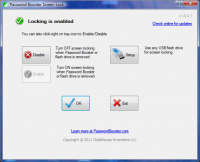
You control Screen Lock by clicking on the icon in the tool tray to bring up the control panel. The status of the Password Booster Screen Lock is always shown at the top of the control panel as either Enabled or Disabled.
You can press the Disable button to temporarily disable Screen Lock and stop Screen Lock from all activity.
You can then press the Enable button to re-enable Screen Lock to begin waiting for you to insert a device into any USB port. If a device is already present in a USB port when you press the Enable button, that device becomes the locking device.
You can also right-click your mouse on the tool tray icon to to toggle between Enabled and Disabled.
Screen Lock is started when you first login to your computer. If your Password Booster or enrolled USB flash drive is already present when Screen Lock starts, that device becomes the locking device and will lock you computer when you remove it from the USB port.
You can press the Exit button to completely terminate the Password Booster Screen Lock program. You must then login again to activate the Screen Lock, or you you can launch Password Booster Screen Lock from the Start Menu.
Using USB Flash Drives with Screen Lock
A USB flash drive must be enrolled before it can be used to lock your screen. To enroll a flash drive, click-left on the tray icon and then click the Setup button. Follow the on-screen instructions to enroll the USB flash drive. Enrollment watches for you to insert a new USB flash drive, and uses that flash drive as the device to enroll.
You can also un-enroll a flash drive so that it no longer locks your screen when it is removed.
More Technical Details
Screen lock does not keep any information on your computer hard disk - all information used by Screen Lock is erased when the program exits, either when you log off or when you press the Exit button.
Any USB flash drive can be used with Screen Lock. Screen Lock uses the unique serial number of the USB flash drive that is stored inside the device firmware. Additionally, screen lock saves a unique file onto the flash drive, and regenerates this file every 2 days. Screen Lock uses this file along with the serial number for maximum security.
The LAST Password Booster inserted into a USB port while your computer is unlocked becomes the locking device. When the locking device is now removed from the USB port, your computer session is immediately locked.
The LAST USB flash drive inserted into a USB port while your computer is unlocked becomes the locking device, unless there is already a Password Booster inserted in a USB port. A Password Booster always takes precedence over a USB flash drive for the role of the locking device.
Password Booster Screen Lock does NOT log you into your computer session - it just locks your current session. You are encouraged to log off daily instead of using Screen Lock to protect your computer - Screen Lock does not require a password and is therefore not as secure as using a superpassword, such as what Password Booster provides.
How it works
After you login to your computer, Screen Lock quietly waits for you to insert your Password Booster or USB flash drive. Now, whenever you remove the device from the USB port, your computer login session is immediately locked. Only the device that was used to lock your computer can be used to unlock you computer. This is the locking device.
Controlling Screen Lock
You control Screen Lock by clicking on the icon in the tool tray to bring up the control panel. The status of the Password Booster Screen Lock is always shown at the top of the control panel as either Enabled or Disabled.
You can press the Disable button to temporarily disable Screen Lock and stop Screen Lock from all activity.
You can then press the Enable button to re-enable Screen Lock to begin waiting for you to insert a device into any USB port. If a device is already present in a USB port when you press the Enable button, that device becomes the locking device.
You can also right-click your mouse on the tool tray icon to to toggle between Enabled and Disabled.
Screen Lock is started when you first login to your computer. If your Password Booster or enrolled USB flash drive is already present when Screen Lock starts, that device becomes the locking device and will lock you computer when you remove it from the USB port.
You can press the Exit button to completely terminate the Password Booster Screen Lock program. You must then login again to activate the Screen Lock, or you you can launch Password Booster Screen Lock from the Start Menu.
Using USB Flash Drives with Screen Lock
A USB flash drive must be enrolled before it can be used to lock your screen. To enroll a flash drive, click-left on the tray icon and then click the Setup button. Follow the on-screen instructions to enroll the USB flash drive. Enrollment watches for you to insert a new USB flash drive, and uses that flash drive as the device to enroll.
You can also un-enroll a flash drive so that it no longer locks your screen when it is removed.
More Technical Details
Screen lock does not keep any information on your computer hard disk - all information used by Screen Lock is erased when the program exits, either when you log off or when you press the Exit button.
Any USB flash drive can be used with Screen Lock. Screen Lock uses the unique serial number of the USB flash drive that is stored inside the device firmware. Additionally, screen lock saves a unique file onto the flash drive, and regenerates this file every 2 days. Screen Lock uses this file along with the serial number for maximum security.
The LAST Password Booster inserted into a USB port while your computer is unlocked becomes the locking device. When the locking device is now removed from the USB port, your computer session is immediately locked.
The LAST USB flash drive inserted into a USB port while your computer is unlocked becomes the locking device, unless there is already a Password Booster inserted in a USB port. A Password Booster always takes precedence over a USB flash drive for the role of the locking device.
Password Booster Screen Lock does NOT log you into your computer session - it just locks your current session. You are encouraged to log off daily instead of using Screen Lock to protect your computer - Screen Lock does not require a password and is therefore not as secure as using a superpassword, such as what Password Booster provides.
Password Booster Screen Lock i 1.0.4.1 download tags
Bookmark Password Booster Screen Lock i
Password Booster Screen Lock i for Windows 7 - Copyright information
All Password Booster Screen Lock i reviews, submitted ratings and written comments become the sole property of Windows 7 download. You acknowledge that you, not windows7download, are responsible for the contents of your submission. However, windows7download reserves the right to remove or refuse to post any submission for any reason.
Windows 7 Download periodically updates pricing and software information of Password Booster Screen Lock i full version from the publisher, but some information may be out-of-date. You should confirm all information.
Using warez version, crack, warez passwords, patches, serial numbers, registration codes, key generator, pirate key, keymaker or keygen for Password Booster Screen Lock i license key is illegal and prevent future development of Password Booster Screen Lock i. Download links are directly from our mirrors or publisher's website, Password Booster Screen Lock i torrent or shared files from free file sharing and free upload services, including Rapidshare, MegaUpload, YouSendIt, SendSpace, DepositFiles, DivShare, HellShare, HotFile, FileServe or MediaFire, are not used.
Windows 7 Download periodically updates pricing and software information of Password Booster Screen Lock i full version from the publisher, but some information may be out-of-date. You should confirm all information.
Using warez version, crack, warez passwords, patches, serial numbers, registration codes, key generator, pirate key, keymaker or keygen for Password Booster Screen Lock i license key is illegal and prevent future development of Password Booster Screen Lock i. Download links are directly from our mirrors or publisher's website, Password Booster Screen Lock i torrent or shared files from free file sharing and free upload services, including Rapidshare, MegaUpload, YouSendIt, SendSpace, DepositFiles, DivShare, HellShare, HotFile, FileServe or MediaFire, are not used.
Post Password Booster Screen Lock i review


Windows 7 Password Booster Screen Lock i related downloads
... keep your computer secure when you step away, Password Booster Screen Lock is the perfect solution. Developed ...
My Account
Help
Windows 7 Software Coupons
-
WinX DVD Ripper
50% Off -
WinX DVD Copy Pro
42% Off -
WinX HD Video Converter
56% Off -
MacX MediaTrans
63% Off -
MacX Media Management Bundle
70% Off
My Saved Stuff
You have not saved any software.
Click "Save" next to each software.
Click "Save" next to each software.
Would you like to receive announcements of new versions of your software by email or by RSS reader? Register for FREE!
Windows 7 Downloads Picks
- DualSafe Password Manager 1.4.0.14
- Windows Key 9.0
- Password Manager XP 4.0.825
- Portable KeePass Password Safe 2.56
- Sticky Password PRO 8.8.6.1817
- KeePass Password Safe 2.56
- NetWrix Password Manager 6.5.782.0
- Password Depot Server 4 5.0.0
- Password Depot Professional 17.2.1
- Password Memory 2010 3.0.1
- Password Reminder 1.0.1.1
- Kaspersky Password Manager 9.0.2.1525
- GPassword Manager 3.1.1
- M Pass Finder 1.0
- Sisma 5.4
- Keeper Desktop 7.1.1
- PasswordVault Lite 8.0.1
- KeePassX 2.0.3
- eWallet 8.12.0.38084
- Portable Sisma 5.4
Popular Tags
outlook
application
passwords
security
hidden
account
forgotten
email
microsoft
reveal
windows
tool
unmask
password
restore
recover
retrieve
rescue
secret
internet
asterisk
lost
utility
password manager
multilingual
login
uncover
software
recovery
code
Popular Windows 7 Software
- VPNBook
- IObit Malware Fighter 13.2.0.1635
- Microsoft Safety Scanner 1.449.489.0 (May 7,
- Malwarebytes Chameleon 3.1.33.0
- Free Folder Lock 2.3.8.8
- DualSafe Password Manager 1.4.0.14
- Deep Freeze 8.71.20.5734
- 7thShare Folder Lock Pro 2.3.8.8
- EventSentry Light 6.0.1.48
- Top Data Protector 3.1.0.18
- Sandboxie 1.17.5 Plus
- imyPass iPassBye 1.0.16
- Advanced SystemCare Ultimate 18.2.0.91
- imyPass iPassGo 1.0.52
- Alternate Password DB 3.710
© 2026 Windows7Download.com - All logos, trademarks, art and other creative works are and remain copyright and property of their respective owners. Microsoft Windows is a registered trademarks of Microsoft Corporation. Microsoft Corporation in no way endorses or is affiliated with windows7download.com.